- Lightbox draw
- Guides
- Phone and Android
Use your phone as a light box to trace a drawing
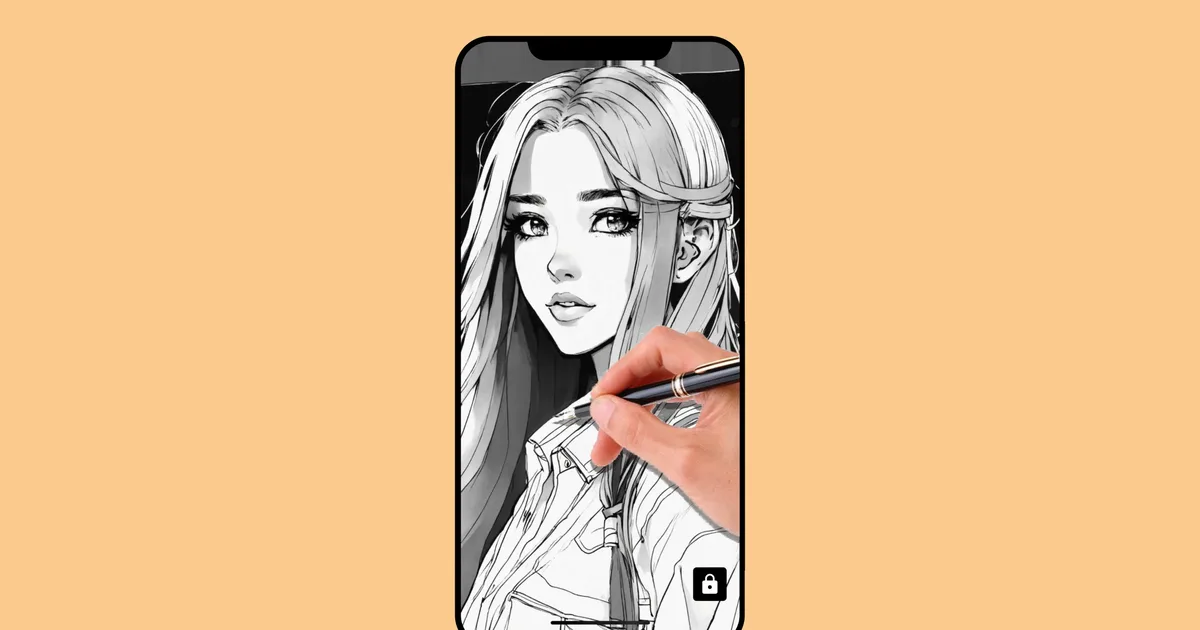
Open the picture on your phone at full brightness, lay thin paper over the screen and trace the lines that show through. It works on any iPhone or Android phone, and on Android tablets, as long as the picture stays still and the screen stays on.
 The Lightbox draw team · 2 min read
Step by step
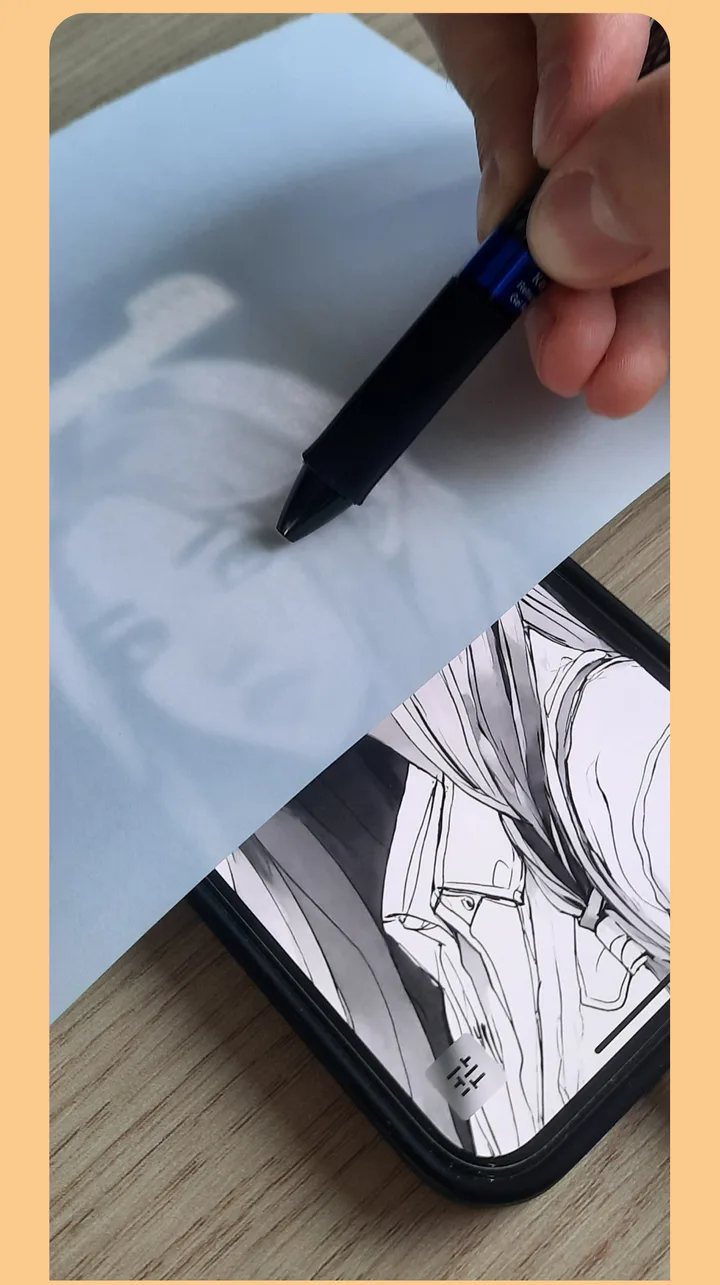
- Get the picture onto your phone: save it from the web or your messages, or take a screenshot.
- Open it and zoom until it is the size you want on paper.
- Turn the brightness to full and turn off automatic brightness so it doesn't dim.
- Stop the picture from moving (see below) and keep the screen from going to sleep.
- Lay the paper over the screen, hold or tape one edge, and trace with light pressure.
On Android phones and tablets
Set Settings › Display › Screen timeout (called Sleep on some phones) to its longest. Android's screen pinning keeps one app on screen, but you can still touch inside that app, so it won't stop your hand from dragging the picture. Some phone makers add their own touch-blocking settings; a light box app's lock works on any phone. An Android tablet gives you the most room for the money, and the steps are the same.
On iPhone
Use Guided Access to ignore touches: turn it on in Settings › Accessibility › Guided Access, open the picture, triple-click the side button, tap Options, turn off Touch and tap Start. Set Settings › Display & Brightness › Auto-Lock to Never while you trace. To move the picture again, triple-click and enter your passcode.
With Lightbox draw
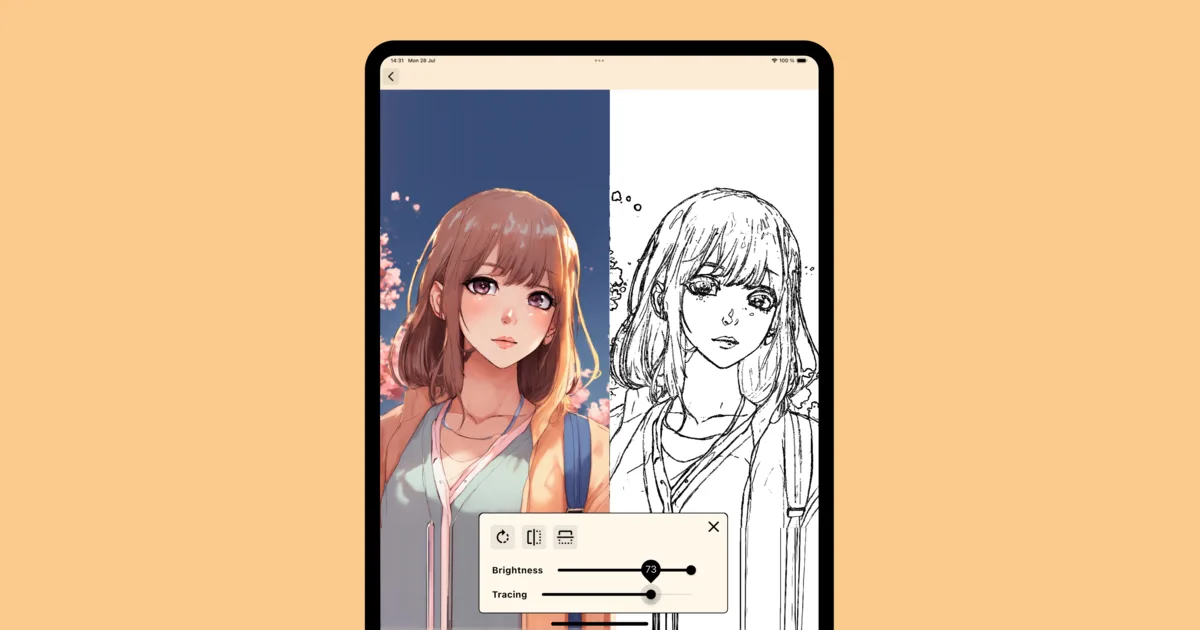
Lightbox draw does the setup in the app. Pick a photo from your library or a ready-made drawing, pinch and drag it into place, and tap the lock button: the picture won't move however you rest your hand. Double-tap the lock to unlock it. While a picture is open the app keeps the screen on, opens it at full brightness and goes full screen. Slide Tracing to turn a photo into outlines, and rotate a wide picture a quarter turn so it fills the tall screen.
What a phone light box can't do
- Fit a big drawing. The tracing area is the size of your screen. Trace a larger picture in parts, lining each part up with what you've drawn, or use a tablet.
- Shine through thick paper. Card and watercolor paper block too much light.
- Take heavy pressure. Press lightly; a screen protector helps protect the glass.
Questions people ask
Can I use my phone as a light box?
Yes. Open the picture at full brightness, lay thin paper over the screen and trace the lines that show through. Keep the picture from moving and the screen from sleeping, either with your phone's settings or with a light box app such as Lightbox draw.
Can I trace a photo with my phone?
Yes. Open the photo, zoom it to size, turn the brightness up and trace it through thin paper laid on the screen. Photos are easier to trace once they're turned into outlines: Lightbox draw's Tracing slider fades the photo into clean lines.
What is the best light box app for Android?
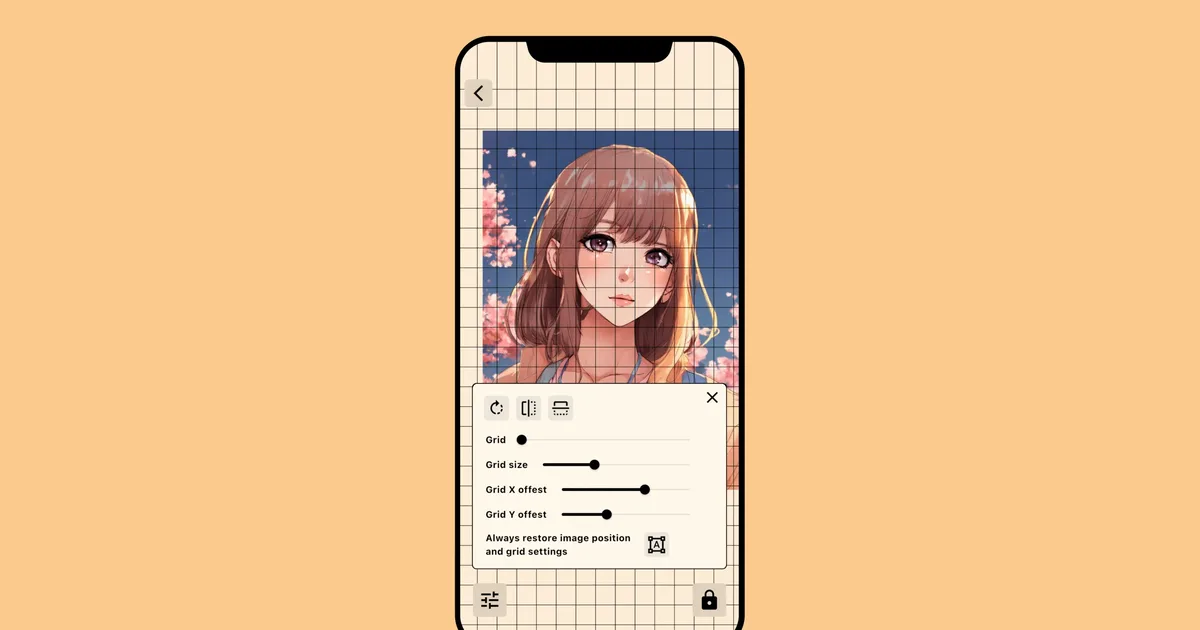
Lightbox draw runs on Android phones and tablets as well as iPhone and iPad. It locks the image so your hand can't move it, keeps the screen on, turns photos into outlines and overlays a grid. Tracing Paper - Light Box and Papercopy are other Android light box apps.
How do I keep my phone screen on while tracing?
On Android, set Settings › Display › Screen timeout to its longest. On iPhone, set Settings › Display & Brightness › Auto-Lock to Never. Light box apps such as Lightbox draw keep the screen on by themselves while a picture is open.
Sources
- Use Guided Access on iPhone or iPadApple Support
- Pin & unpin screensAndroid Help: a pinned app stays on screen and can still be used
- Manage screen & display settings on AndroidAndroid Help: how long the screen stays on
- Tracing Paper - Light Box on Google Playlisting checked November 2026
- Papercopy: Trace & Draw on Google Playlisting checked November 2026
Turn your phone into a light box
Lay paper on the screen, lock the picture so your hand can't move it, and trace. Free to download on iPhone, iPad and Android.