- Lightbox draw
- Guides
- Tips
Stop the picture moving while you trace
The picture slides because the screen reads your palm, your fingers and the paper itself as touches. Turn touch off with Guided Access on iPhone and iPad, or trace in an app that locks the image, so only a deliberate gesture can move it.
 The Lightbox draw team · 1 min read
Why the picture moves
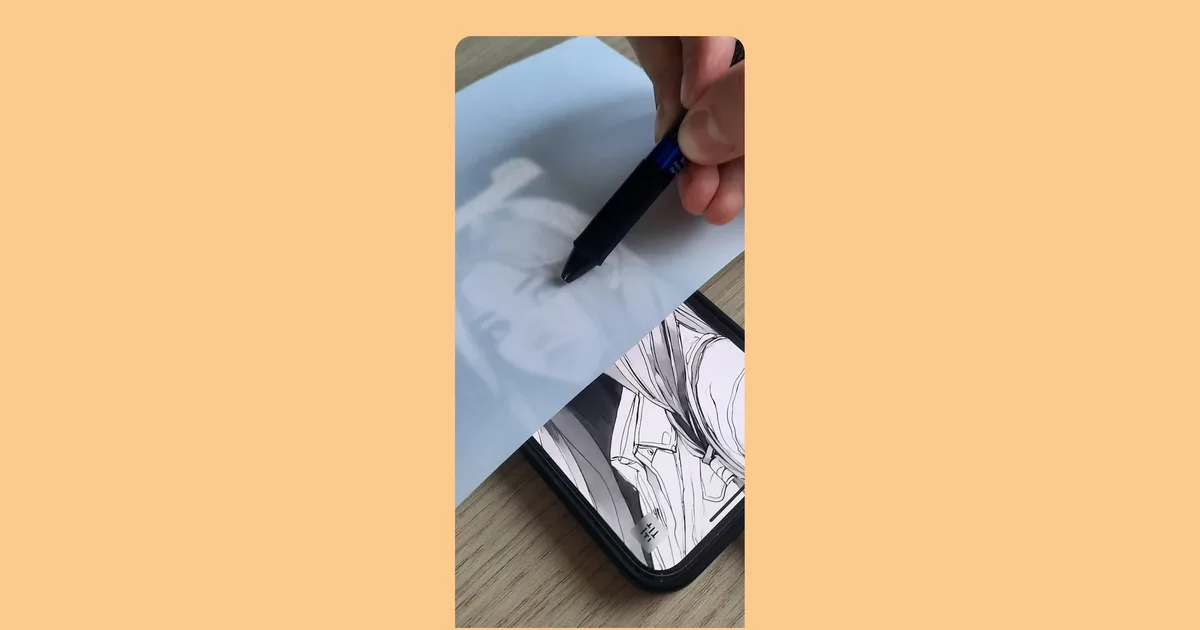
Phone and tablet screens track several touches at once. When you trace, the side of your hand rests on the glass through the paper, and your other hand holds the sheet. The photo viewer reads that as a drag or a pinch, and the picture slides or zooms a little. You often notice only when the lines stop meeting.
Turn touch off on iPhone and iPad
- Go to Settings › Accessibility › Guided Access, turn it on and set a passcode.
- Open the picture and zoom it to the size you want.
- Triple-click the side button (iPhone), the top button (iPad) or the Home button on older models.
- Tap Options, turn off Touch, and set Display Auto-Lock so the screen stays on.
- Tap Start and trace. To change anything, triple-click and enter your passcode.
The catch: every adjustment means ending the session and starting it again.
Lock the image in a light box app
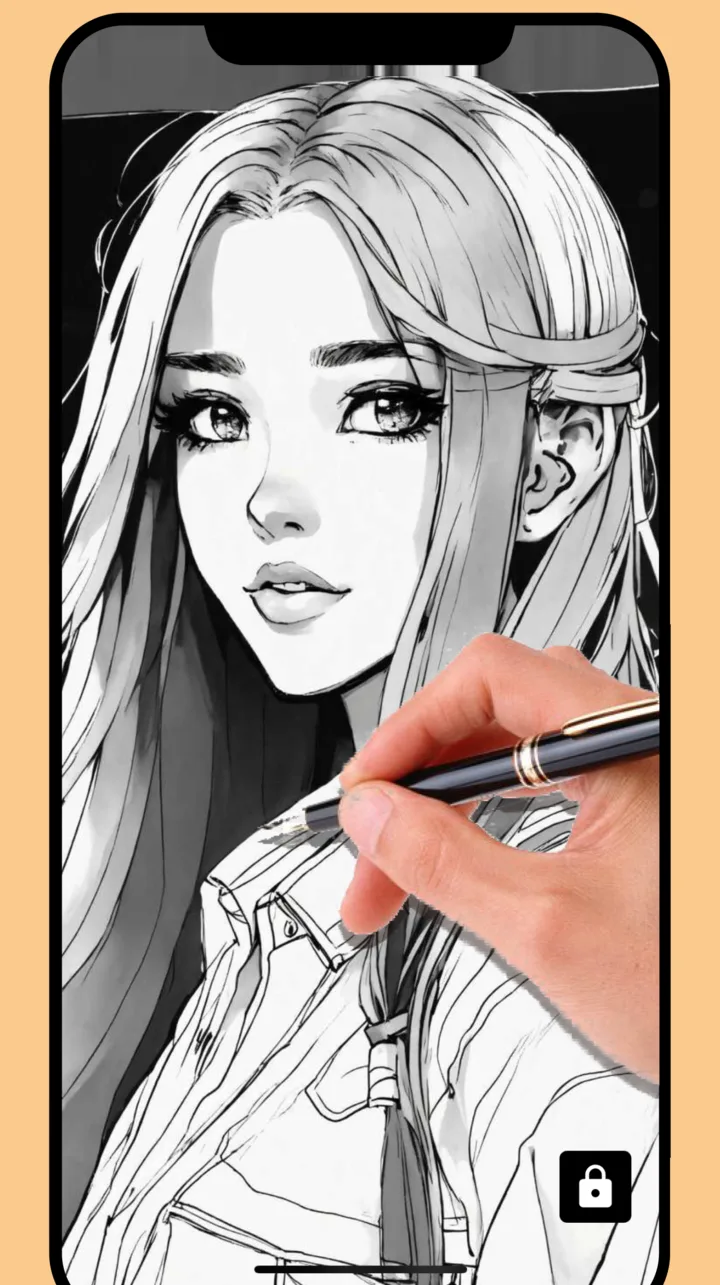
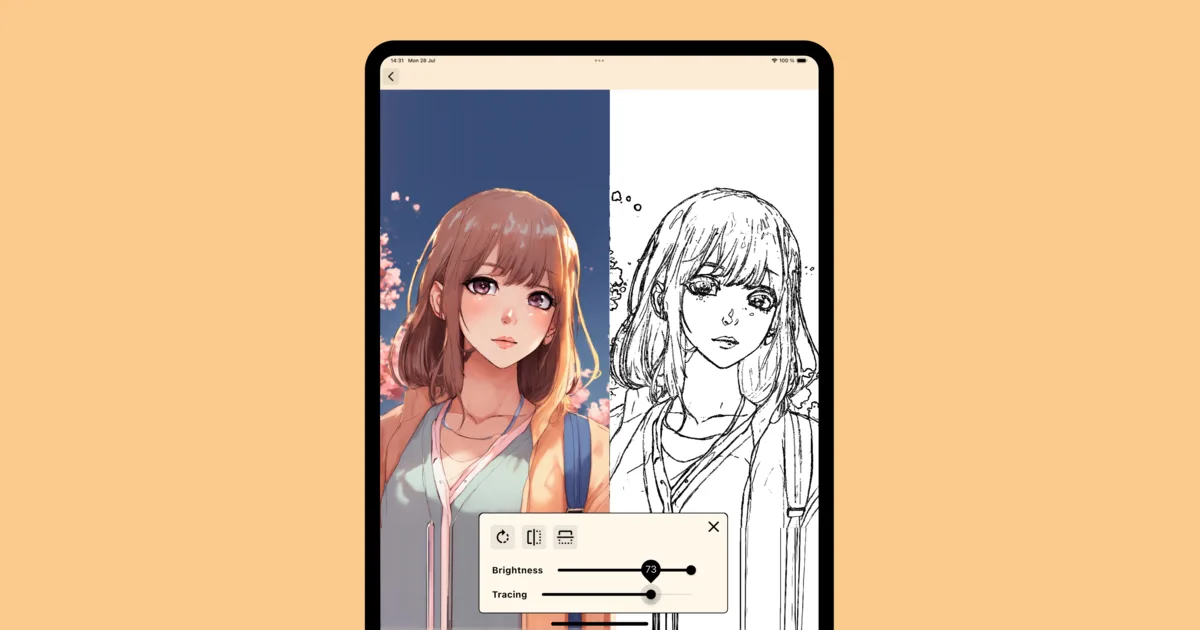
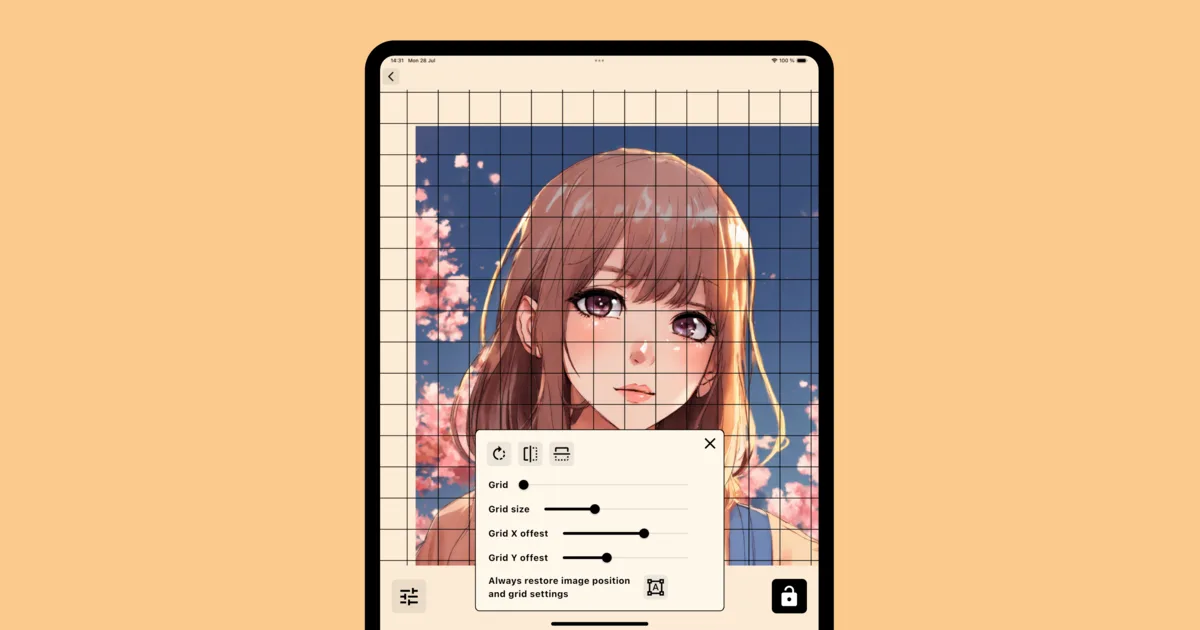
In Lightbox draw you place the picture, then tap the lock button. From then on:
- The picture ignores your hand. It can't be dragged or zoomed until you unlock it.
- A stray tap can't unlock it. A single tap on the lock only shows a hint; a double tap unlocks.
- Leaving by accident gets harder. The back gesture is blocked while the picture is locked, and the app runs full screen with the screen kept on.
On Android
Screen pinning (Settings › Security › Advanced › App pinning on many phones) keeps one app on screen, but you can still touch inside that app, so the picture still moves. Some phone makers add their own touch-blocking settings. The simplest fix on any Android phone or tablet is a light box app with an image lock, such as Lightbox draw.
Questions people ask
How do I stop the picture from moving on my iPad while I trace?
Turn on Guided Access, open the picture, triple-click the top button, turn off Touch in Options and tap Start. The iPad then ignores your hand until you triple-click and enter your passcode. Or trace in Lightbox draw, which locks the picture with one tap and unlocks it with a double tap.
Is there a tracing app that locks the image so it doesn't move?
Yes. Lightbox draw locks the image with one tap so your hand can't drag or zoom it, and it unlocks only with a double tap on the lock button. Trace Table and Papercopy also describe a lock in their store listings.
Does the lock in Lightbox draw lock my phone?
No. It locks the picture, not the phone. The screen stays on and bright, and only the picture is frozen in place so you can rest your hand on the paper. Double-tap the lock button to move the picture again.
Why does my picture zoom in when I trace?
Two touches at once, such as your palm and a finger holding the paper, read as a pinch. Turn touch off with Guided Access, or lock the image in a light box app before you start tracing.
Sources
- Use Guided Access on iPhone or iPadApple Support: turning off Touch during a session
- Pin & unpin screensAndroid Help
- Trace Table - Light Box on the App Storelisting checked November 2026
- Papercopy: Trace & Draw on Google Playlisting checked November 2026
Turn your phone into a light box
Lay paper on the screen, lock the picture so your hand can't move it, and trace. Free to download on iPhone, iPad and Android.