- Lightbox draw
- Guides
- iPad
Use your iPad as a light box for tracing
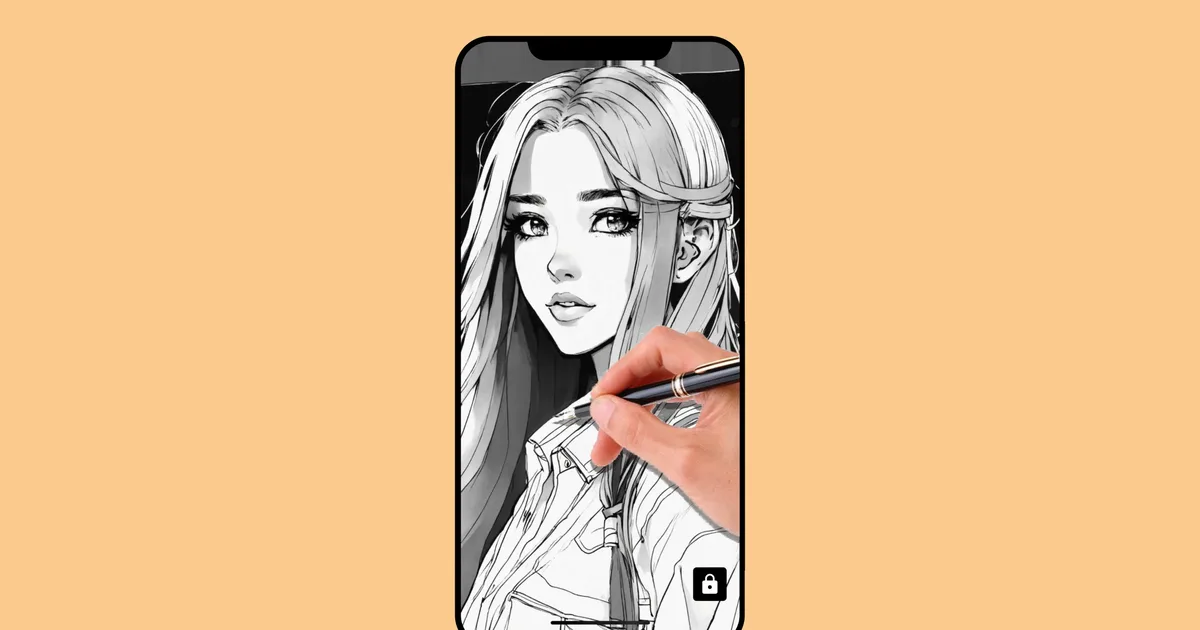
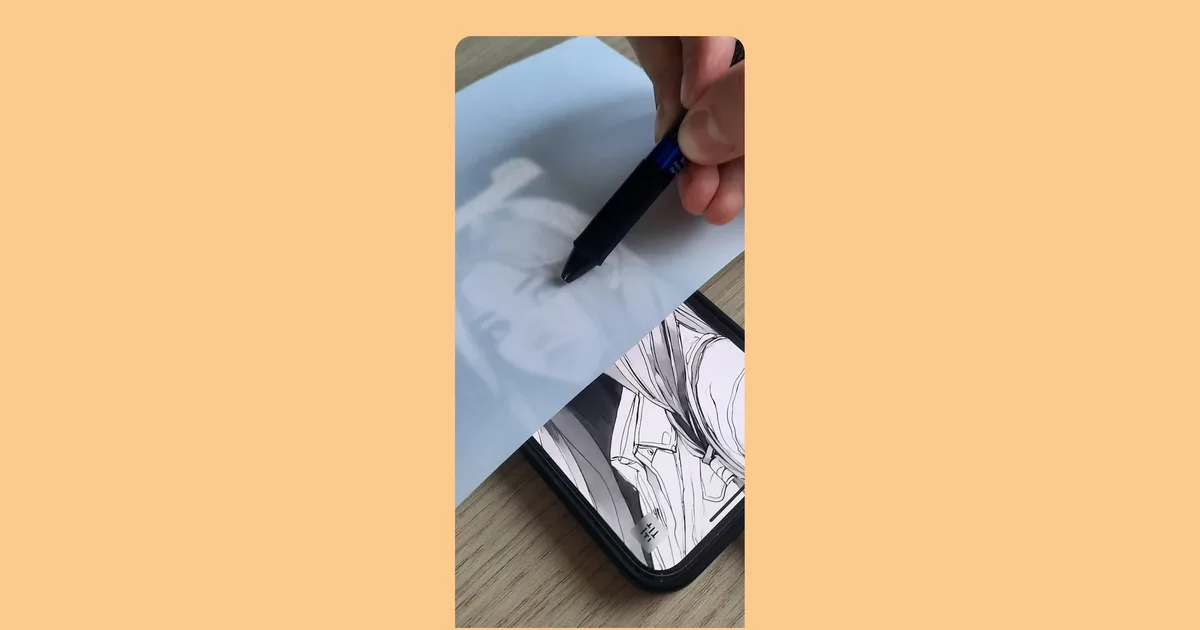
Show the picture on your iPad at full brightness, lay a sheet of thin paper on the glass and trace the lines that shine through. The two things that go wrong, a picture that moves under your hand and a screen that goes to sleep, both have a fix.
 The Lightbox draw team · 2 min read
What you need
An iPad, the picture you want to copy, a sheet of thin paper and a pencil. Tracing paper shows the most detail. Ordinary printer paper works for clear, dark lines, especially in a dimmer room. Low-tack tape on one edge of the paper stops it from sliding.
Set it up with the iPad's own apps
- Save the picture to Photos. For a web image, touch and hold it and save it. For a page of a PDF, take a screenshot.
- Open it in Photos and pinch to zoom until it is the size you want on paper.
- Turn the brightness all the way up in Control Center. If it keeps dimming, turn off Auto-Brightness in Settings › Accessibility › Display & Text Size.
- Keep the picture still with Guided Access: turn it on in Settings › Accessibility › Guided Access, then triple-click the top button (or the Home button), tap Options, turn off Touch and tap Start.
- Keep the screen awake: set Settings › Display & Brightness › Auto-Lock to Never, or choose Display Auto-Lock in the Guided Access options.
- Lay the paper on the screen and trace with light pressure.
This works, but each change to the picture means ending Guided Access, adjusting, and starting it again. And Photos shows the picture only as it is: no outlines, no grid.
Set it up with a light box app
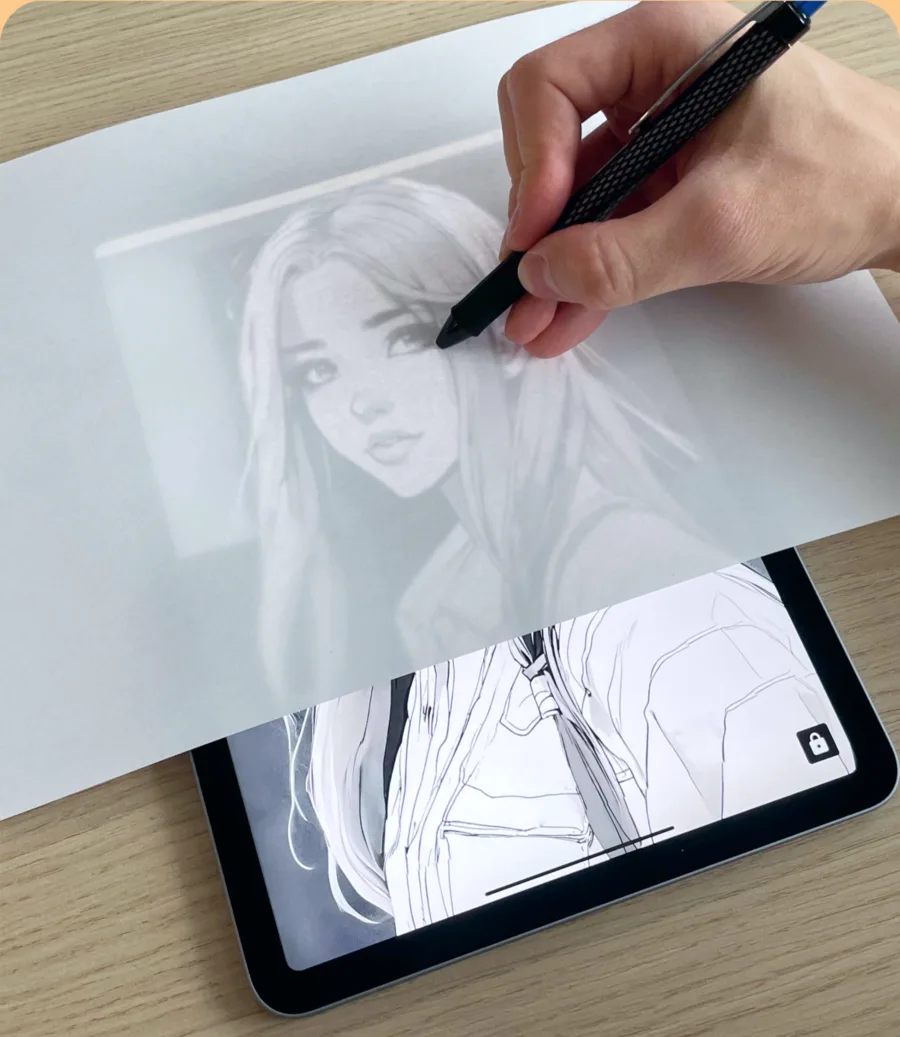
Lightbox draw is made for this. Pick a photo from your library or one of its ready-made drawings, then:
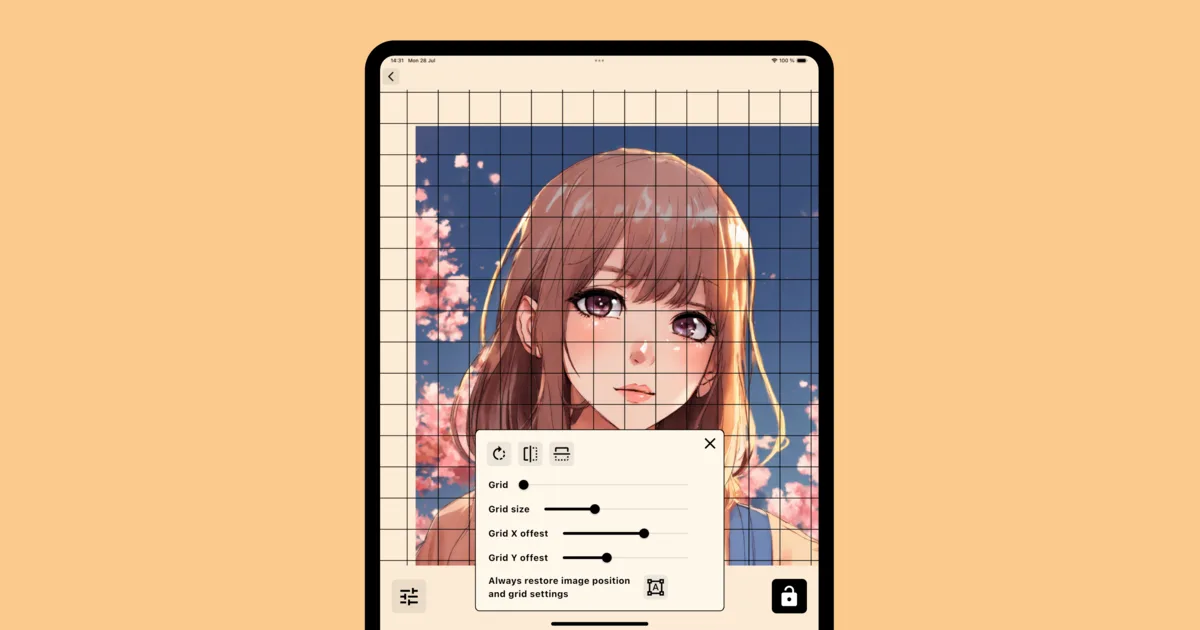
- Pinch and drag the picture to the size and place you want. Rotate or mirror it from the settings button if you need to.
- Slide Tracing to turn a photo into outlines, which are easier to see through paper. Add a Grid if you want help with proportions.
- Tap the lock button. The picture can't be dragged or zoomed now, however you rest your hand.
- Lay the paper on the screen and trace. The app keeps the screen on and opens the picture at full brightness, with a slider to dim it.
- Double-tap the lock button to unlock and move the picture.
Tracing a printed drawing instead
If the drawing is on paper, the iPad can light it from below. Show a plain white image at full brightness, lock it with Guided Access, lay the printed drawing on the screen, put your blank sheet over it and trace. Two sheets block more light, so this works best with thin paper and a dim room.
What an iPad light box can't do
- Trace bigger than the screen in one go. For a larger drawing, trace it in parts: unlock, move the picture, line it up with what you have already drawn (a grid helps), lock and carry on.
- Shine through thick paper. Card, watercolor paper and canvas need a brighter light box or a different method, such as an AR tracing app that shows the picture over your paper through the camera.
- Take heavy pressure. Press lightly and keep sharp points away from the glass. A screen protector adds a layer between the paper and the screen.
Questions people ask
Can I use my iPad as a light box?
Yes. Show the picture at full brightness, lay thin paper on the screen and trace the lines that shine through. To stop your hand from moving the picture, turn on Guided Access with Touch off, or use a light box app such as Lightbox draw, which locks the image with one tap.
Is there an app that turns my iPad into a light box?
Yes. Lightbox draw shows your photo or a ready-made drawing at full brightness, keeps the screen on, locks the image so your hand can't move it, and can turn photos into outlines or overlay a grid. It works on iPad, iPhone and Android. Trace Table and Tracing Board are other iPad light box apps.
How do I stop my iPad screen from turning off while I trace?
Set Settings › Display & Brightness › Auto-Lock to Never while you trace, and turn off Auto-Brightness in Settings › Accessibility › Display & Text Size if it dims. Light box apps such as Lightbox draw keep the screen on by themselves while a picture is open.
What paper can I trace through on an iPad?
Tracing paper shows the most detail. Thin printer paper works for clear, dark lines, more so in a dim room. Thick drawing paper, card and watercolor paper block too much light. If the lines are faint, turn a photo into outlines first and turn the brightness to full.
Is Lightbox draw free?
Lightbox draw is free to download and to trace with. A premium upgrade unlocks the full features. It runs on iPhone, iPad (iPadOS 15 or later) and Android phones and tablets.
Sources
- Use Guided Access on iPhone or iPadApple Support: turning off Touch and setting Display Auto-Lock during a session
- Keep the iPad display on longeriPad User Guide: Auto-Lock
- Adjust the screen brightness and color on iPadiPad User Guide: brightness and Auto-Brightness
- Trace Table - Light Box on the App Storelisting checked November 2026
- Tracing Board | Lightbox on the App Storelisting checked November 2026
Turn your phone into a light box
Lay paper on the screen, lock the picture so your hand can't move it, and trace. Free to download on iPhone, iPad and Android.